
Enable Microsoft Authentication
Disclaimer: This guidance applies only to UniPhi v20 and earlier versions. For information specific to UniPhi v21 and later releases, including the latest Microsoft authentication updates and procedures, please refer to the official article here: https://uniphi-software.com/community/faq/microsoft-authentication-faq
This information is intended for Network Administrators who wish to enable single sign-on (SSO)
Step by step instructions:
Launch your Microsoft Entra admin center
Expand the "Identity" section, in left navigation bar
Expand the "Application" section, under "Identity"
Click on "App Registration"
Click the "New Registration" button
Enter the user facing name as "UniPhi"
Either limit to users from your own tenant or any tenant if you expect to have users from outside your Azure AD
The platform should be web.
Set the redirect URI to https://<youruniphiurl>/microsoft_account
Click the Register button

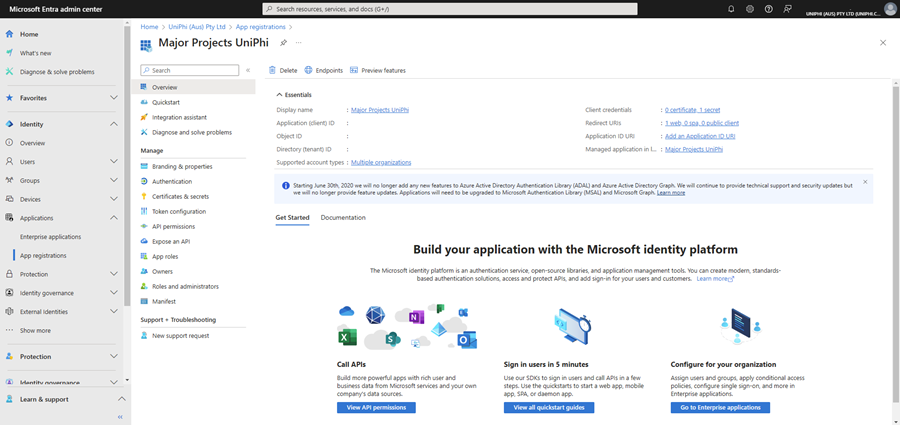
Copy and record the Application (client) ID
Click on the "Authentication" link under the "Manage" head, in the middle navigation bar
Where the Front-channel logout URL is set the Logout URL to https://<youruniphiurl>/microsoft_account/logout.aspx
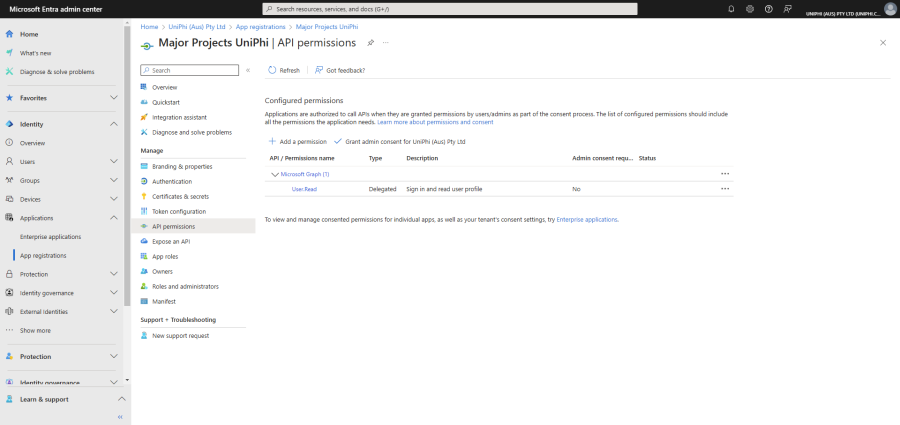
Click the "API permissions" link in the middle navigation bar
Click the "Grant admin consent for <yourorganisation> button"
Click the "Yes" button
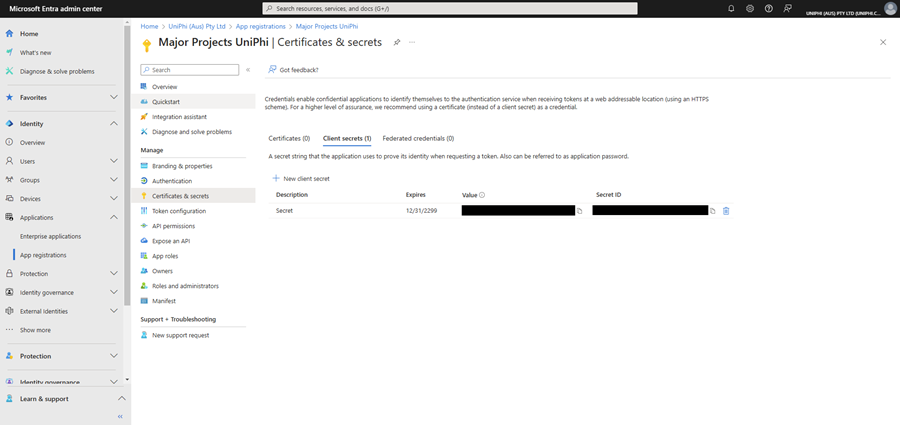
Click on "Certificates & secrets" link above the "API permissions" link
Click the "New client secret" button
Describe the secret as "UniPhi"
Set the secret expiry to your desired length.
Press the Add button
Immediately copy the new Client secret value, consider this like a password and do not share it with anyone
Launch your UniPhi deployment and browse to Configuration -> Authentication
In the Microsoft Authentication panel, press the Enable button
Paste in your Application ID and Client secret
Press the Save button
